The Mozambique eVisa document upload format requires PDF, JPEG, or PNG files, each under 5 MB. Scans must be clear and legible at a minimum 300 DPI. Passport photos should be JPEG, 35mm x 45mm, at 600 DPI. Blurry or wrong-format uploads face rejection.
Wrong file types or blurry scans trigger a 5-day correction window from evisa.gov.mz. This guide covers all technical rules, file formats, size limits, and quality standards, to ensure first-time approval. Last verified: August 18, 2026, against current rules published on the eVisa portal.
The Mozambique eVisa document upload format requires PDF, JPEG, or PNG files under 5 MB per document. Passport photos should be JPEG, 35mm x 45mm, at 600 DPI. All scans must be clear, legible, and free of blur or shadows to avoid rejection.
Accepted File Formats and Size Limits for Mozambique eVisa
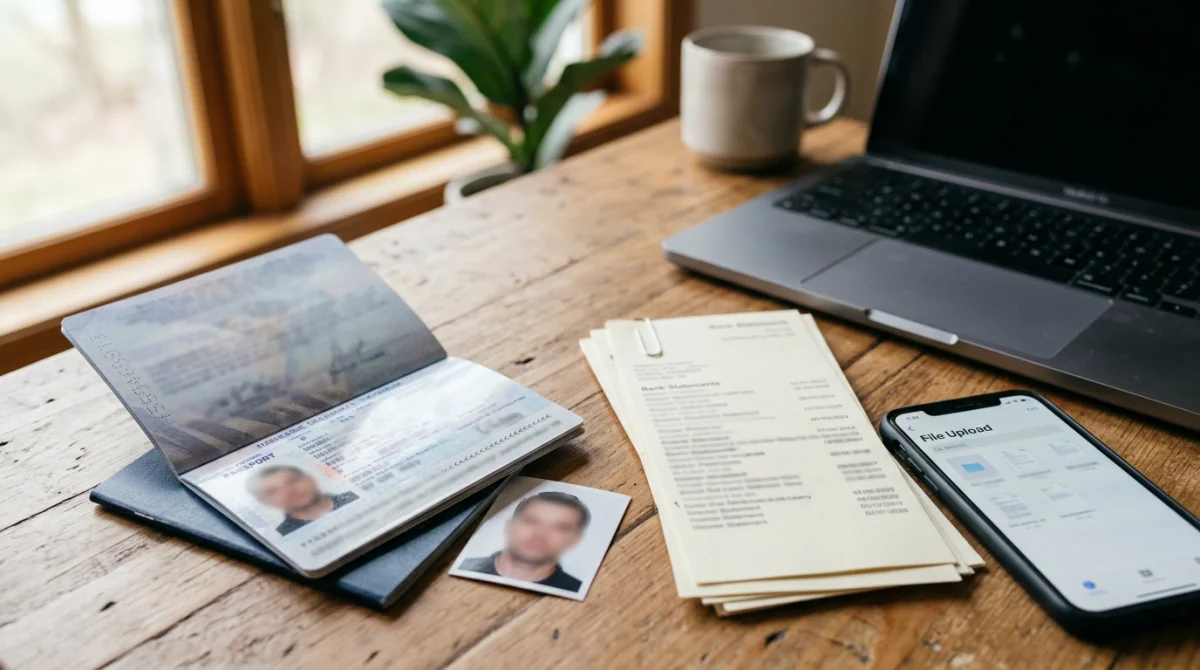
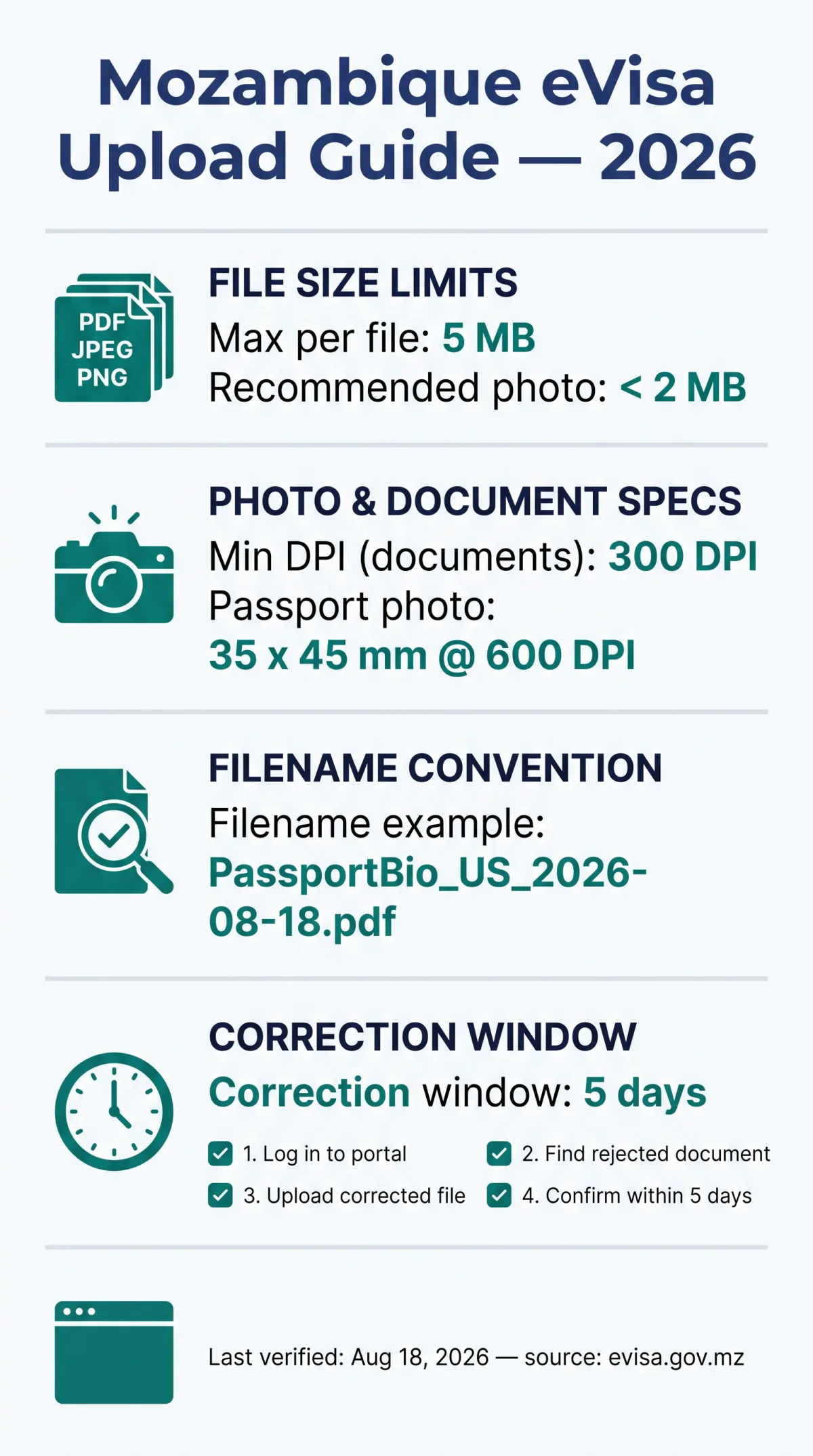
The Mozambique eVisa document upload format accepts PDF, JPEG, and PNG files, with a strict 5 MB size limit per document. The portal validates each file’s extension and size instantly upon selection. Passport-style photographs should stay under 2 MB for faster processing. Multi-page bank statements must be combined into a single PDF before submission.
| Document Type | Accepted Formats | Hard Limit | Recommended Size |
|---|---|---|---|
| Passport bio page | PDF, JPEG, PNG | 5 MB | 1-2 MB |
| Passport photograph | JPEG preferred | 5 MB | under 2 MB |
| Supporting documents | PDF, JPEG, PNG | 5 MB | 2-4 MB |
Oversized files can be reduced with free tools such as ilovepdf.com for PDFs and tinyjpg.com for JPEGs without losing readability. On Mac, use Preview to export at reduced quality; on Windows, use Paint to resize and re-save.
Scan Quality Standards to Avoid Blurry Rejections
Scans must meet minimum 300 DPI (600 DPI for passport photos). Files below this threshold trigger automatic “unreadable document” errors. The 300 DPI minimum and 600 DPI photo requirement follow standards published at evisa.gov.mz; the 35mm x 45mm photo dimensions follow ICAO passport photo standards.
- Use colour mode for the passport bio-data page; grayscale is acceptable only for hotel bookings and flight itineraries.
- Keep proper orientation, not rotated, with all four corners visible and no cut-off edges.
- Eliminate shadows, glare, and inconsistent lighting; place the document flat against a dark, uniform surface.
- Verify text legibility by zooming to 200% before uploading.
- Confirm file size remains under 5 MB after compression.
Passport Bio-Page Scan Rules
The Mozambique eVisa document upload format requires a colour scan of the passport bio page (not grayscale), minimum 300 DPI, all four corners visible, no glare on the photo. Accepted formats: JPEG or PDF.
Photograph Upload Specifications
Dimensions: 35mm x 45mm. Resolution: 600 DPI recommended. Format: JPEG preferred (PNG may also be accepted). Background: plain white or light-coloured. Neutral expression, looking directly at camera, head and shoulders visible. File size: under 2 MB recommended. Photo must be taken within the last 6 months.
Colour vs Grayscale: Which Scan Mode to Use
The portal at evisa.gov.mz specifies colour for passport bio pages. Use colour for all documents to avoid ambiguity. Grayscale is acceptable for hotel bookings and flight itineraries where colour is not critical for legibility.
How to Avoid Blurry Scan Rejections
Blurry-scan rejections are the number-one cause of Mozambique eVisa delays. A traveler uploading a passport scan at 150 DPI with a shadow over the photo received a preliminary rejection email; after rescanning at 300 DPI with natural side lighting, the document passed validation within 24 hours. Use the diagnostic table below to identify and fix common blur causes before uploading.
| Cause of Blur | Visual Indicator | Fix |
|---|---|---|
| Insufficient lighting | Harsh shadows, dark patches | Use natural side lighting; avoid overhead lights |
| Low resolution | Pixelated text at 100% zoom | Set scanner to 300+ DPI; move phone closer |
| Handheld movement | Double-edged text, ghosting | Use 3-second timer or rest phone on stable surface |
| Background glare | White reflection on glossy pages | Reposition light source to 45-degree angle |
| Document not flat | Curved text, warped edges | Press document flat; use book weights |
| Wrong camera distance | Text too small or distorted | Hold camera 30-40 cm above page |
| Dirty document surface | Smudges, fingerprints visible | Clean document with dry cloth before scanning |
Smartphone Camera vs Flatbed Scanner
Smartphone photos are accepted if they meet 300 DPI, no blur, no shadows, and all corners visible. Follow these 5 steps for phone capture:
- Place the document on a dark, uniform surface to maximize contrast.
- Set a 3-second timer to eliminate handheld movement.
- Hold the camera 30-40 cm above the page at a straight angle.
- Use natural side lighting to avoid glare on glossy surfaces.
- Check sharpness at 200% zoom before saving the file.
When using a flatbed scanner, set resolution to 300-600 DPI, select colour mode, and export as PDF.
How to Check Your Scan Quality Before Uploading
Open the file in Preview (Mac), Photo Viewer (Windows), or Google Photos (mobile). Zoom to 200% and verify all text is readable. Check DPI: Windows (right-click, Properties, Details), Mac (Get Info, More Info). Confirm file size is under 5 MB before starting the upload.
File Naming, Error Messages, and Re-Uploading
File names must avoid spaces, diacritics, and special characters. Use format: DocumentType_CountryCode_Date.ext (e.g., PassportBio_US_2026-08-18.pdf). Non-compliant names cause upload errors on the portal.
Common Upload Error Messages
| Error Message | Meaning | Fix |
|---|---|---|
| “File too large” | Exceeds 5 MB limit | Compress with ilovepdf.com or tinyjpg.com |
| “Invalid file format” | Unsupported extension | Convert to PDF, JPEG, or PNG |
| “Unreadable document” | Below 300 DPI or blurry | Rescan at 300+ DPI with proper lighting |
| “Upload failed” | Browser or network issue | Switch to Chrome or Firefox; enable JavaScript |
| “Session expired” | Page idle too long | Refresh page; save progress frequently |
Use Google Chrome or Mozilla Firefox (latest versions); Edge works with caution, Safari may cause issues. Keep JavaScript enabled in browser settings; the upload form will not submit without it.
Re-Uploading Rejected Documents
If you receive a preliminary rejection email, the portal grants a 5 calendar-day correction window. Follow these steps: (1) log in to the portal, (2) locate the rejected document, (3) upload a corrected version, (4) confirm submission. If corrected files are not uploaded within 5 days, the application faces automatic rejection, requiring a fresh submission.
Pre-Upload Final Checklist
- File format is PDF, JPEG, or PNG
- File size is under 5 MB (under 2 MB for photos)
- Scan resolution is 300+ DPI (600 DPI for photos)
- File name has no spaces or special characters
- Browser is Chrome or Firefox with JavaScript enabled
Mozambique eVisa Document Upload Format FAQ
What file formats are accepted for Mozambique eVisa document uploads?
The Mozambique eVisa document upload format accepts PDF, JPEG, and PNG. JPEG is preferred for passport photos; PDF is recommended for multi-page documents such as bank statements.
What is the maximum file size for Mozambique eVisa uploads?
Each document must be under 5 MB. For passport photographs, keeping the file under 2 MB is recommended for faster processing. Use ilovepdf.com or tinyjpg.com to compress oversized files.
Can I upload a JPEG instead of a PDF for supporting documents?
JPEG is accepted for single-page documents; PDF is recommended for multi-page files like bank statements. The portal accepts PDF, JPEG, and PNG for all document types.
How do I avoid blurry scan rejections?
Use minimum 300 DPI, ensure even lighting with no shadows or glare, keep the document flat, and verify readability by zooming to 200% before uploading. All four corners must be visible with no cut-off edges.
What is the minimum DPI for Mozambique eVisa document scans?
Minimum 300 DPI for all documents. 600 DPI is recommended for passport photographs to meet the 35mm x 45mm dimension requirement. Colour mode is required for passport bio pages.
Can I use my phone camera to scan documents?
Yes, phone camera photos are accepted if they meet 300 DPI, show no shadows, all corners are visible, and lighting is proper. Place the document on a dark uniform surface, use a 3-second timer, and hold the camera 30-40 cm away.
How do I rename files for Mozambique eVisa upload?
Avoid diacritics, spaces, and special characters. Use format DocumentType_CountryCode_Date.ext, e.g., PassportBio_US_2026-08-18.pdf. Non-compliant names cause upload errors.
What happens if my documents are rejected? Can I re-upload?
Yes. The portal sends a preliminary rejection email giving a 5-day correction window. Log in, find the rejected document, upload the corrected version, and confirm. If not uploaded within 5 calendar days, the application faces automatic rejection.
Which browsers work best for uploading documents to the Mozambique eVisa portal?
Google Chrome and Mozilla Firefox (latest versions) are recommended. Edge works with caution; Safari may cause upload issues. JavaScript must be enabled for the form to submit.
Can I combine all documents into one PDF for the Mozambique eVisa upload?
The portal requires separate uploads per document type. Combine multi-page documents such as bank statements into a single PDF, but upload each document type separately.